Milthm Game Features Introduction
Home
After entering the game, you will arrive at a café interface. 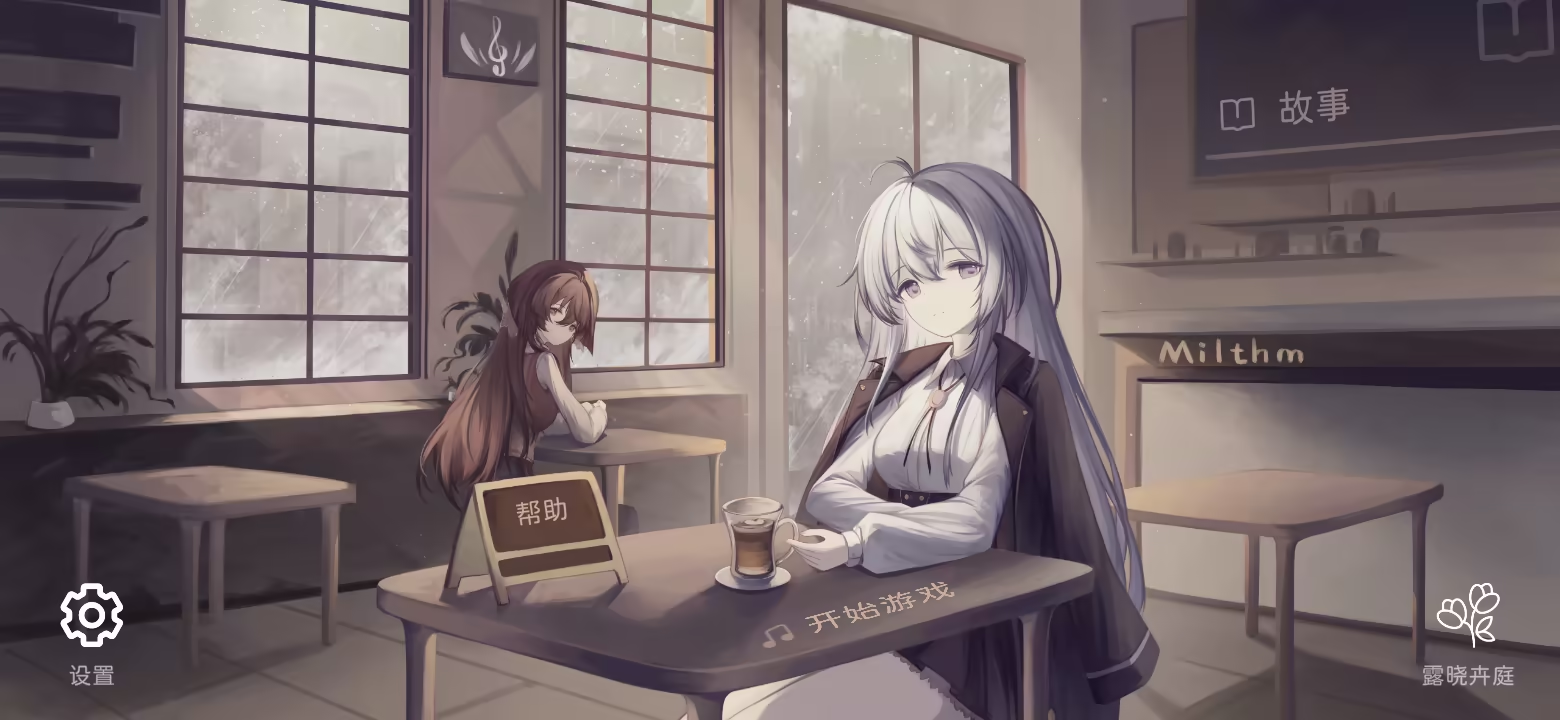
- Click “Start Game” on the table or nearby area to enter the song selection screen.
- Click “Help” on the table to view detailed explanations of game mechanics.
- Click “Story” in the top-right corner to read the game’s storyline.
- Click the “Settings” button in the bottom-left corner to adjust game and play settings.
- Click Luxiao Huìtíng in the bottom-right corner to enter the Garden.
Settings
In the settings menu, you can select six modules on the left: Play, Offset, Audio, Graphics, User, About. 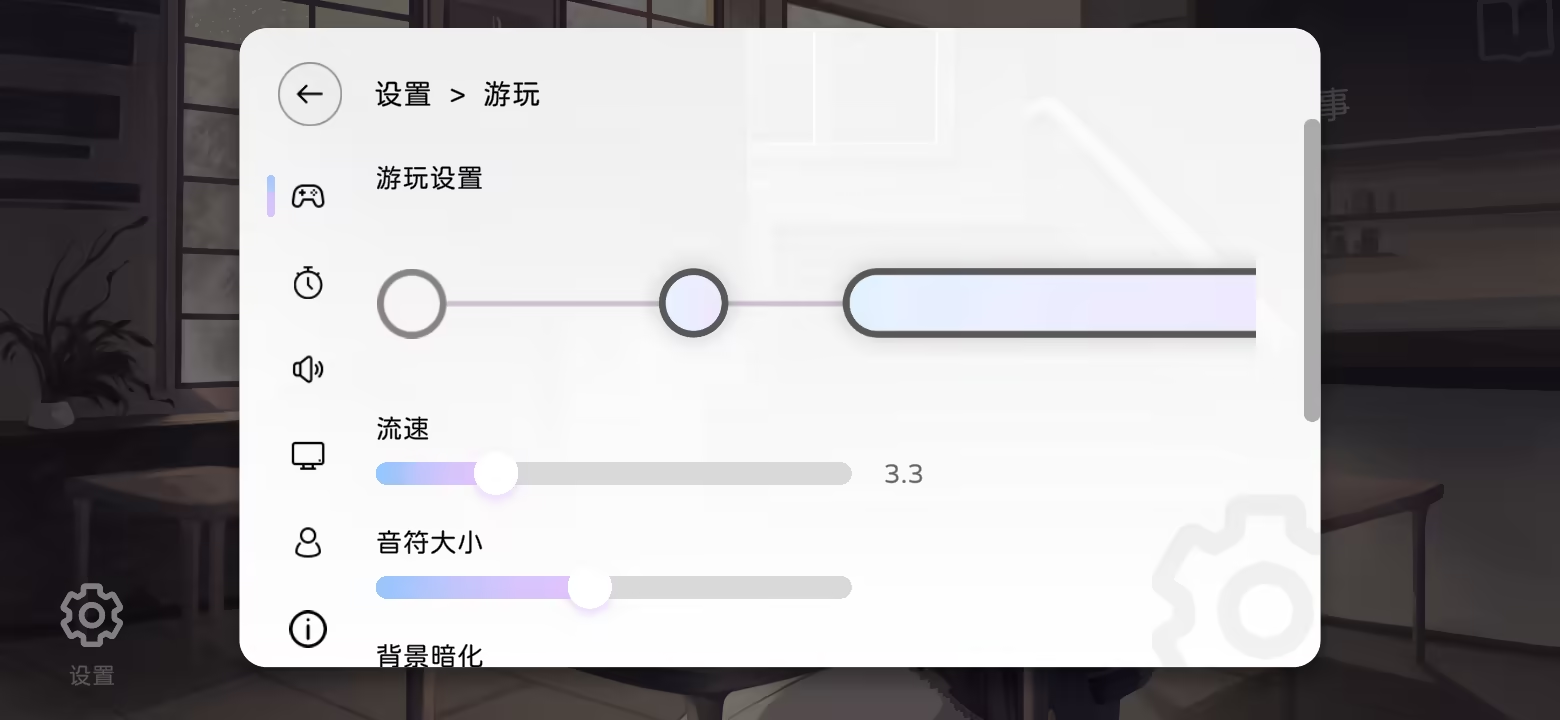
Play Settings
The first step before playing — Play Settings.
“Flow Speed” determines the falling speed of notes. The higher the value, the faster they fall. The default value is 3.3, adjustable from 1.0 to 12.3.
The recommended range is 1.0 to 10.0. When exceeding 10.0, the slider gradually turns red.
Adjusting flow speed does not affect actual gameplay difficulty — set it according to your preference.

“Note Size” adjusts the displayed size of notes. You can preview the change in real time in the preview box above.
Adjusting note size does not affect the actual judgment range.
Background Dimming controls the brightness of background artwork during gameplay. 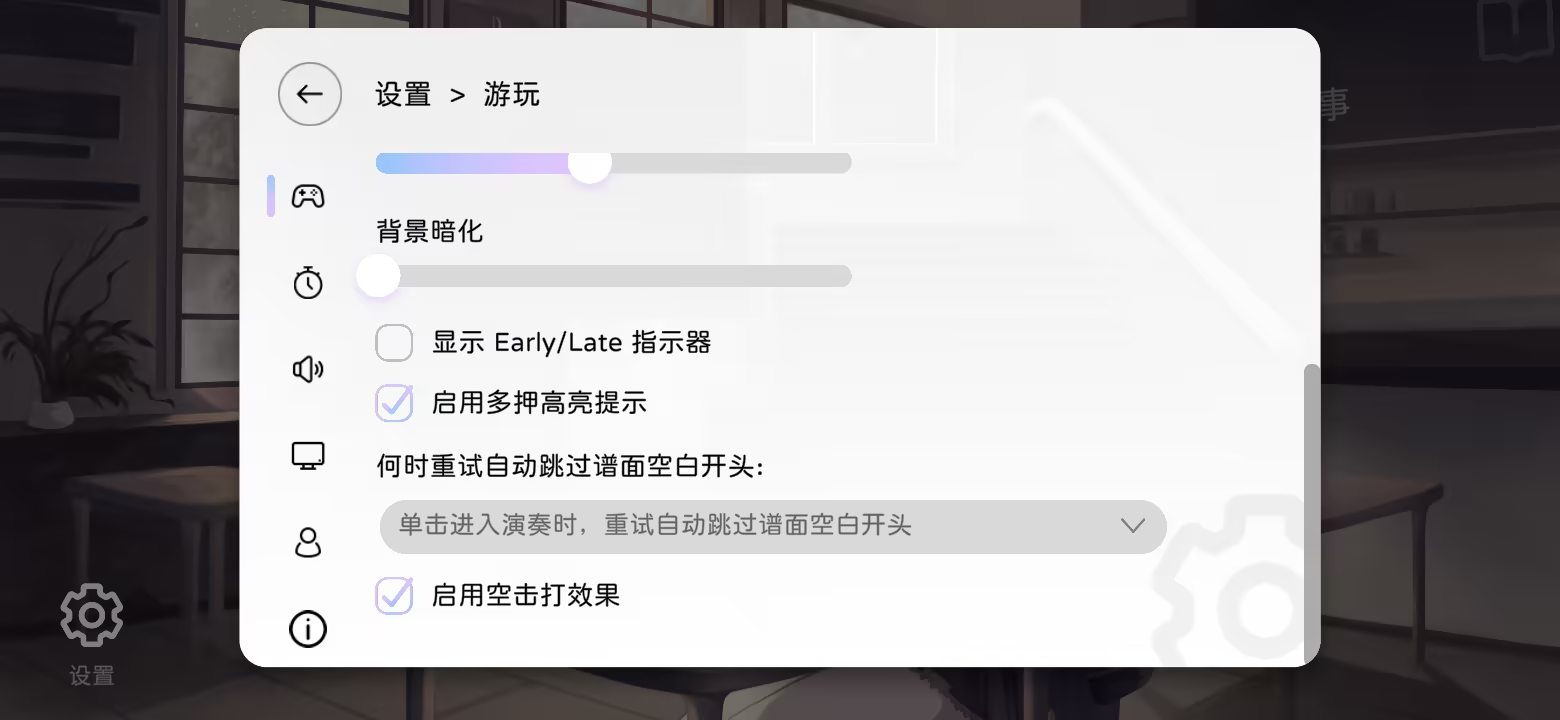
Enable “Show Early/Late Indicator” to display timing hints next to your combo counter when the result isn’t Perfect.
- Left = Early
- Right = Late
Judgment colors:
- Perfect = Blue
- Great = Green
- Good = Yellow
- Bad/Miss = Red
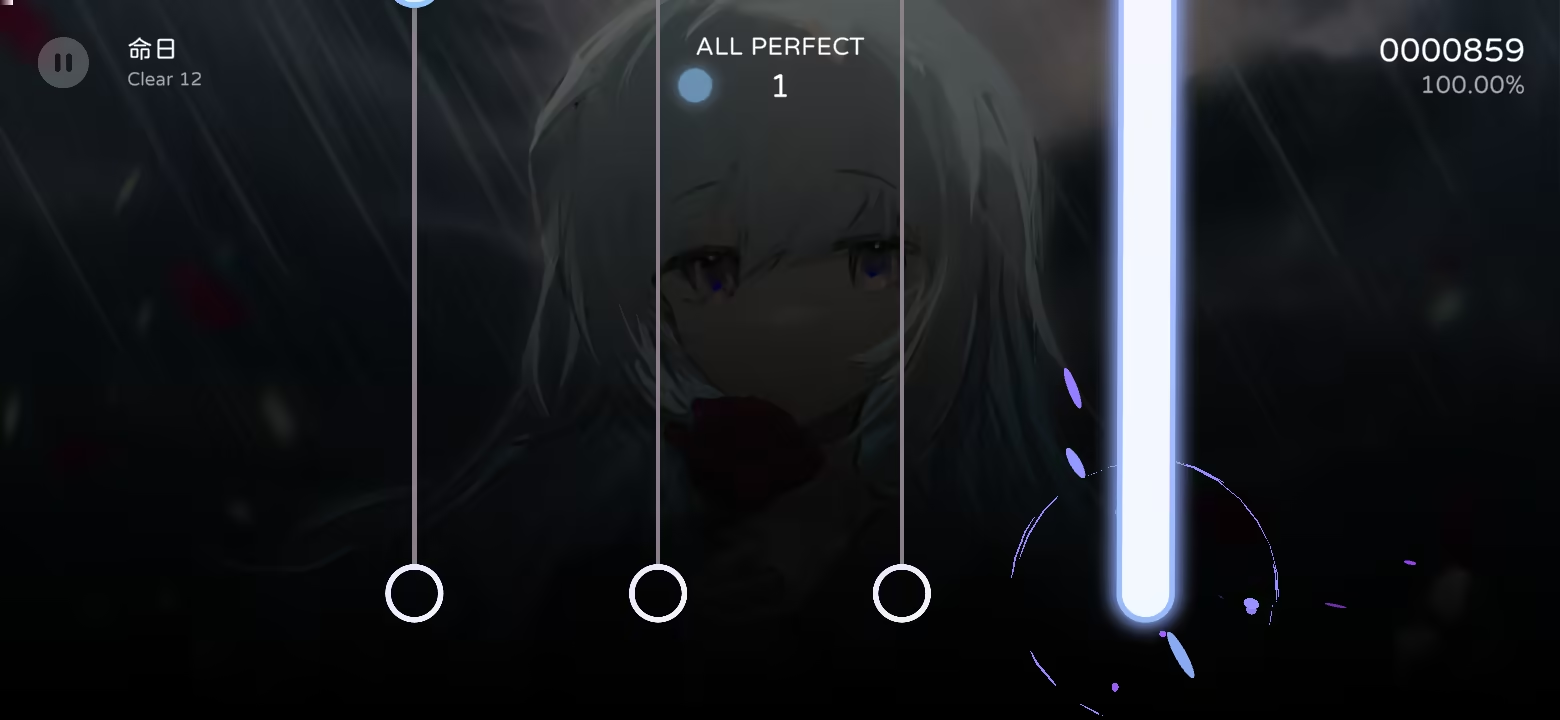
In-game indicator
Enable “Multi-hit Hint” to highlight when two or more notes must be pressed simultaneously. 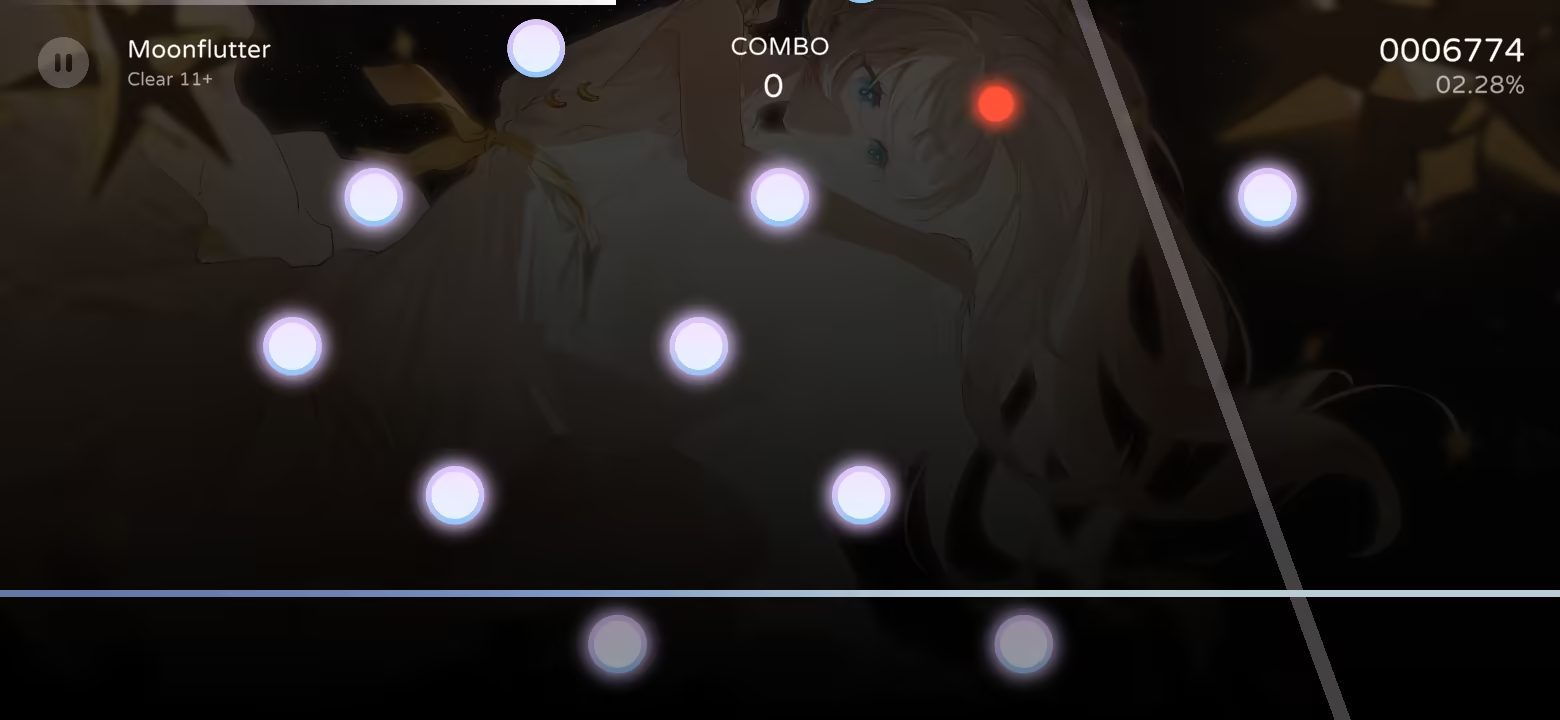
“Auto Skip Blank Intro” automatically skips the empty section at the beginning of a chart.
“Enable Miss Effect” provides visual feedback when tapping without hitting a note. 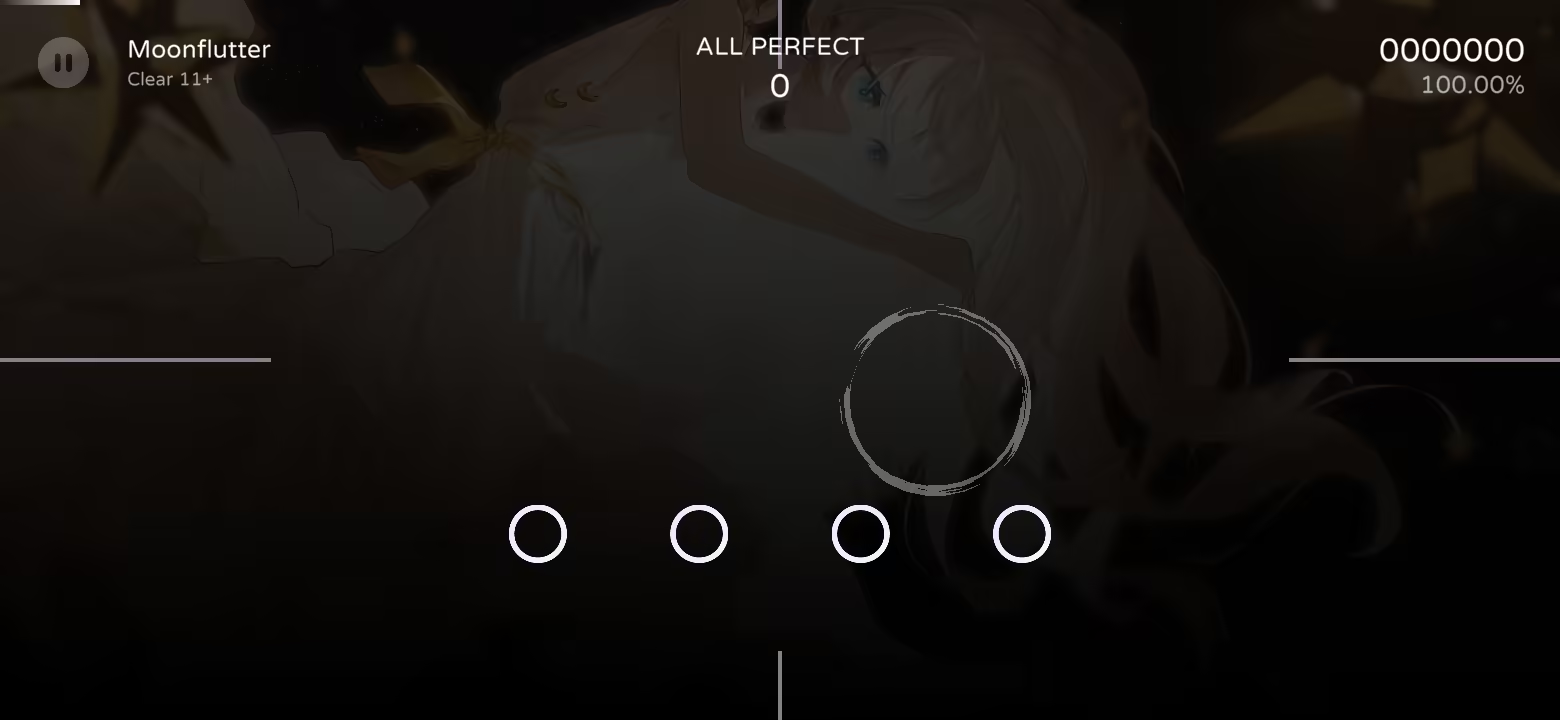
Offset Settings
Here, you can adjust chart offset using looped audio.
Tap the screen on the beat so the downbeat aligns with the 4th gray marker to calibrate. 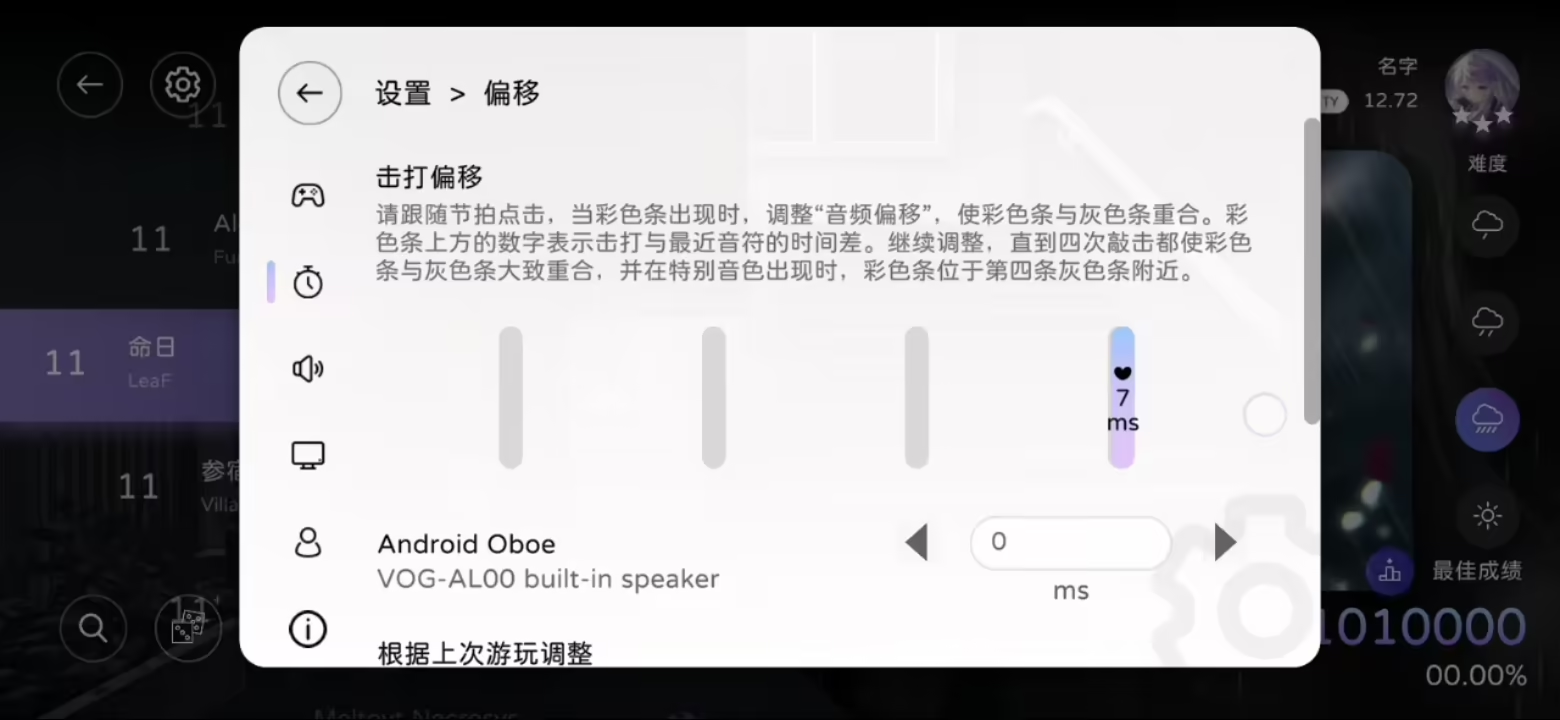
You can also play any chart and check “Details” in the result screen to view statistics and adjust offset accordingly. 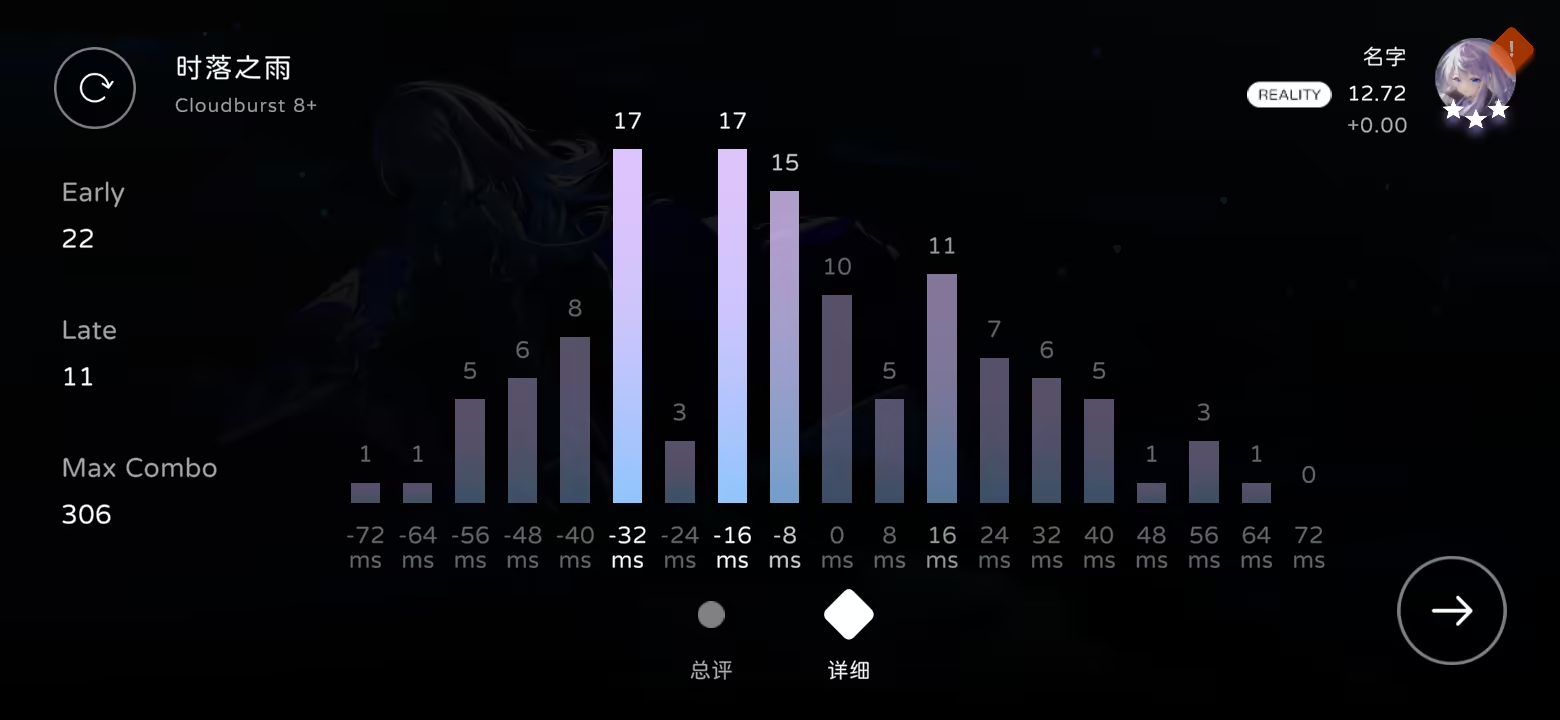
You can exit anytime and check your last play information in the settings menu. 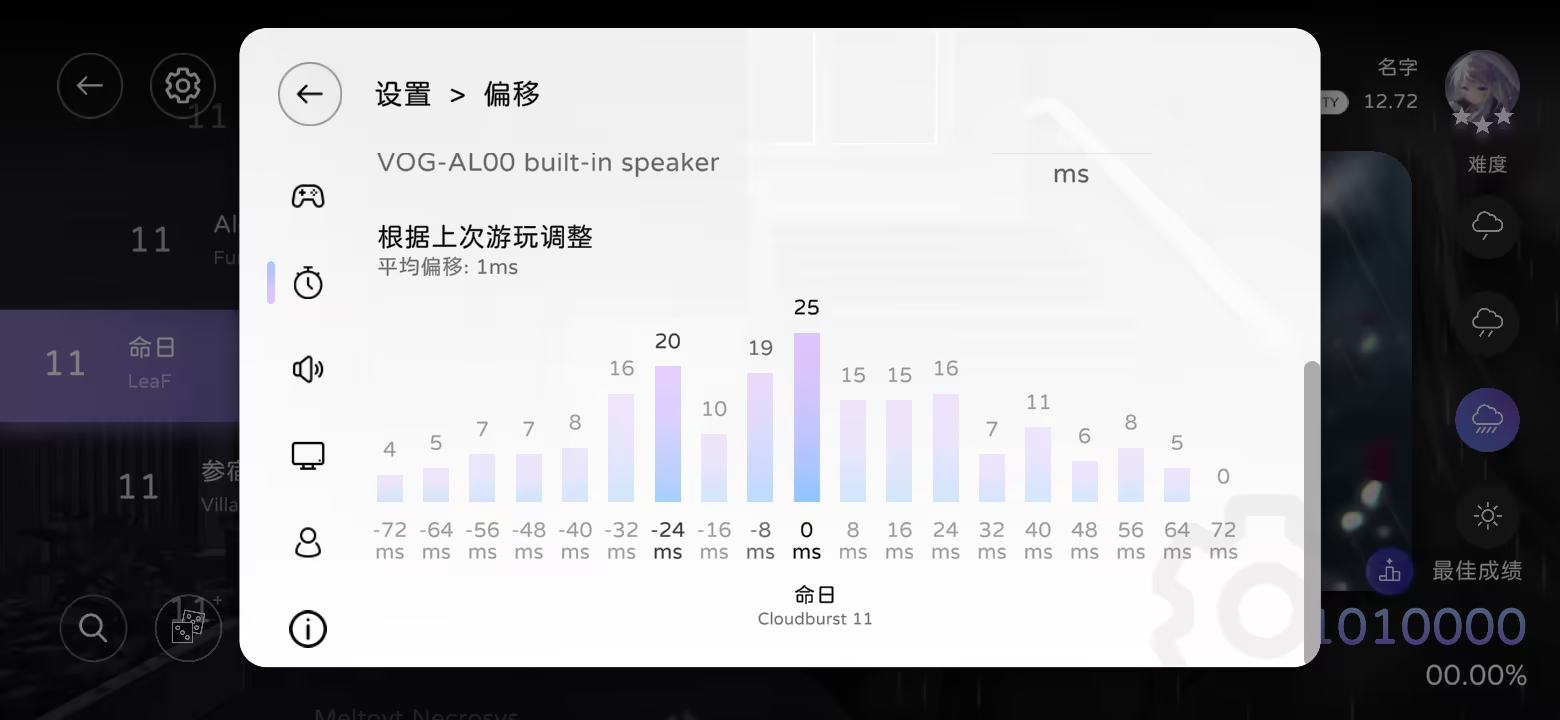
Audio Settings
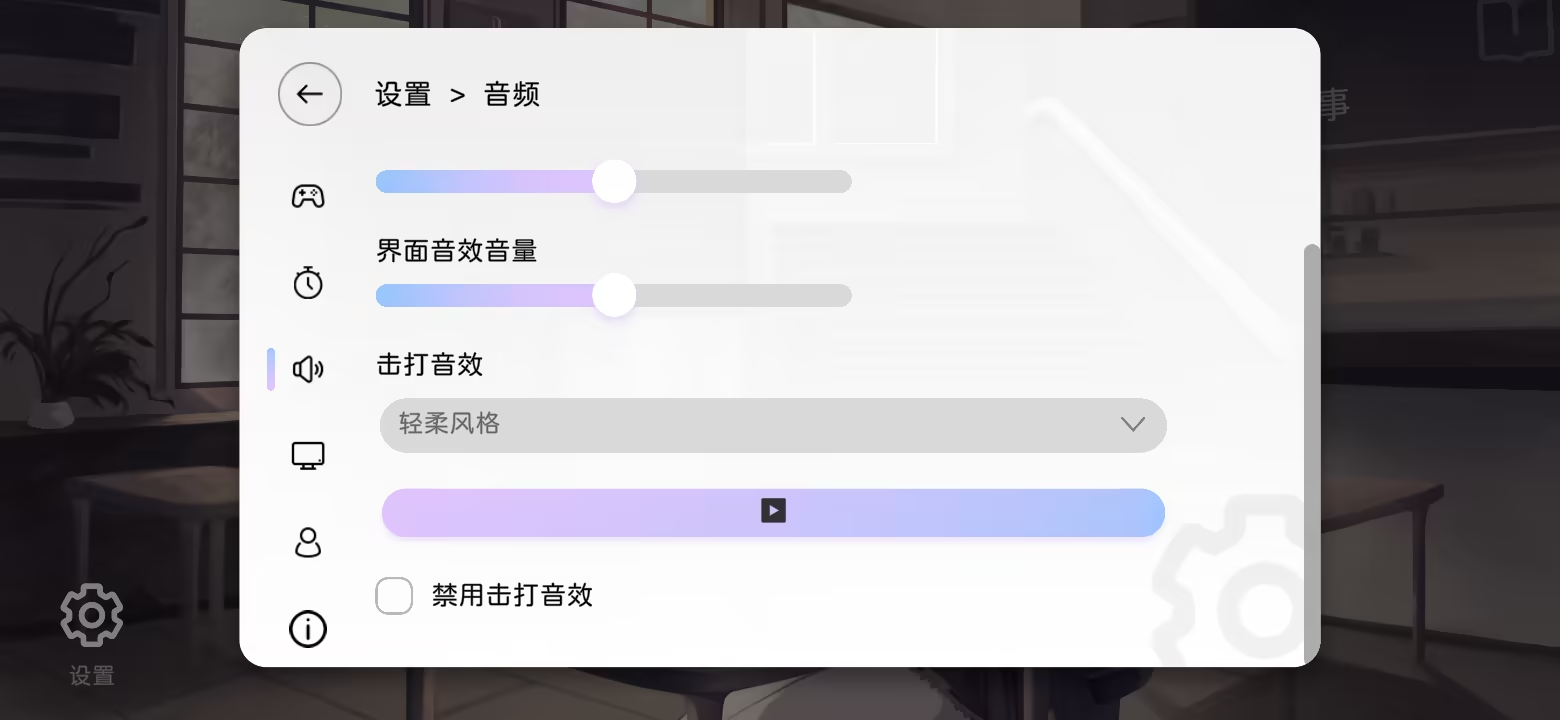
Adjust Music Volume, SFX Volume, and UI SFX Volume using sliders.
Like Flow Speed, sliders gradually turn red when exceeding the recommended range.
You can also adjust and preview hit sound effects here.
If you experience high latency, it’s recommended to turn off hit sounds.
Graphics Settings
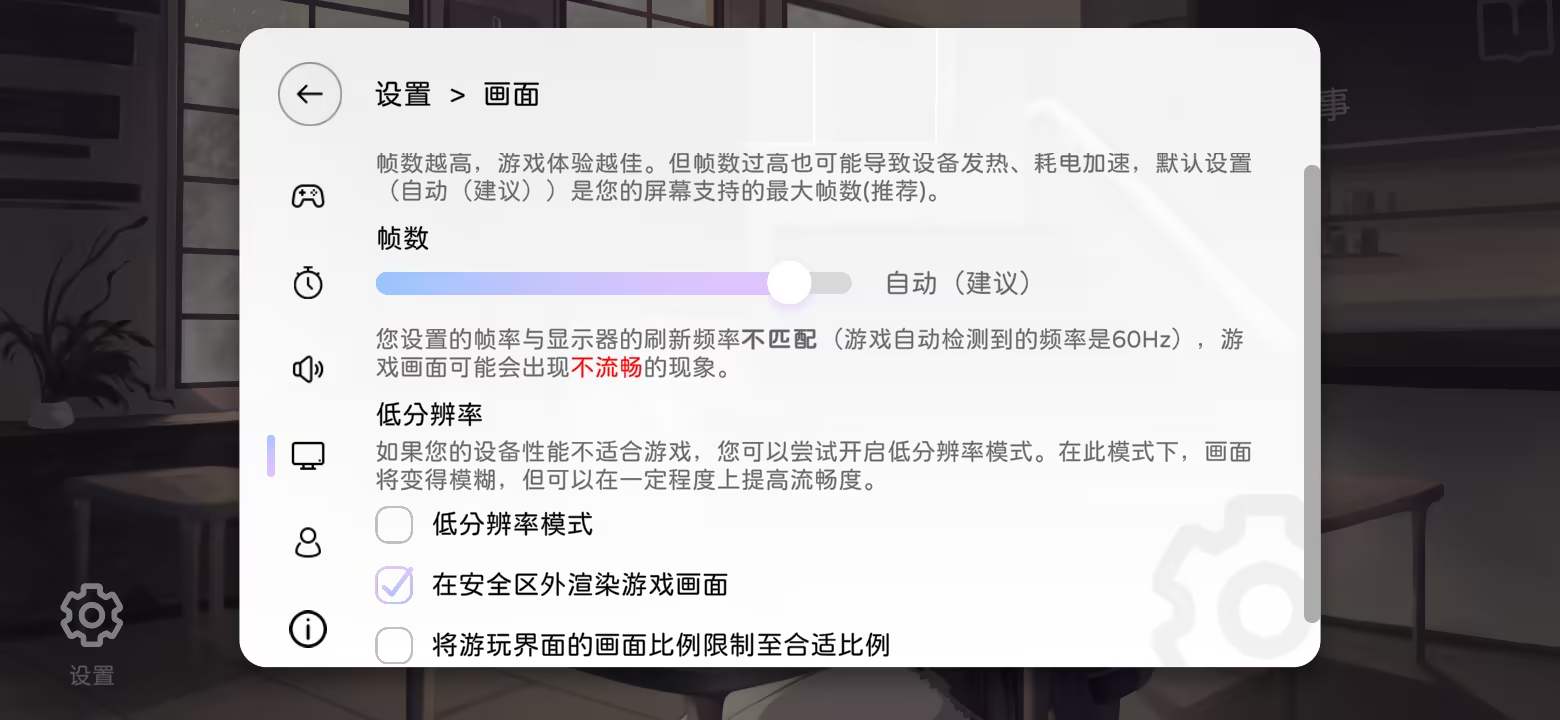
Adjust graphics quality and frame rate as desired.
“Render Outside Safe Area” and “Restrict Aspect Ratio” can help adapt the display on non-standard screen devices.
User Settings
This is the Milthm user login interface. You can log into your Milkloud account for online services and save data transfer.
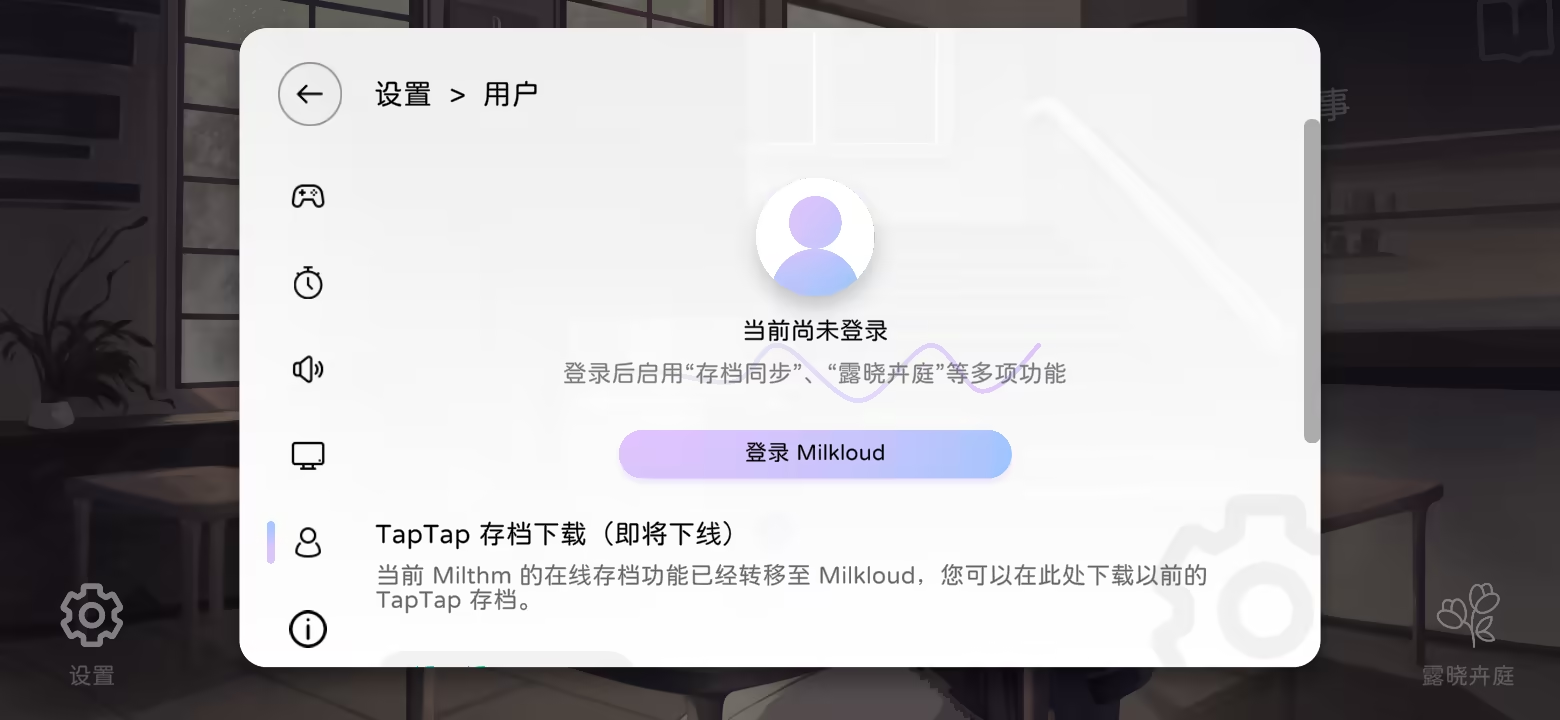
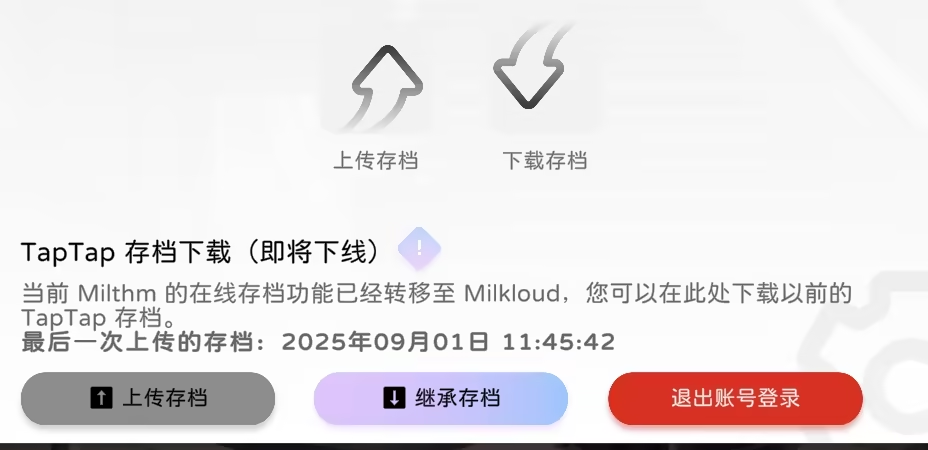
You can also modify your username, language, and track title language below.
About
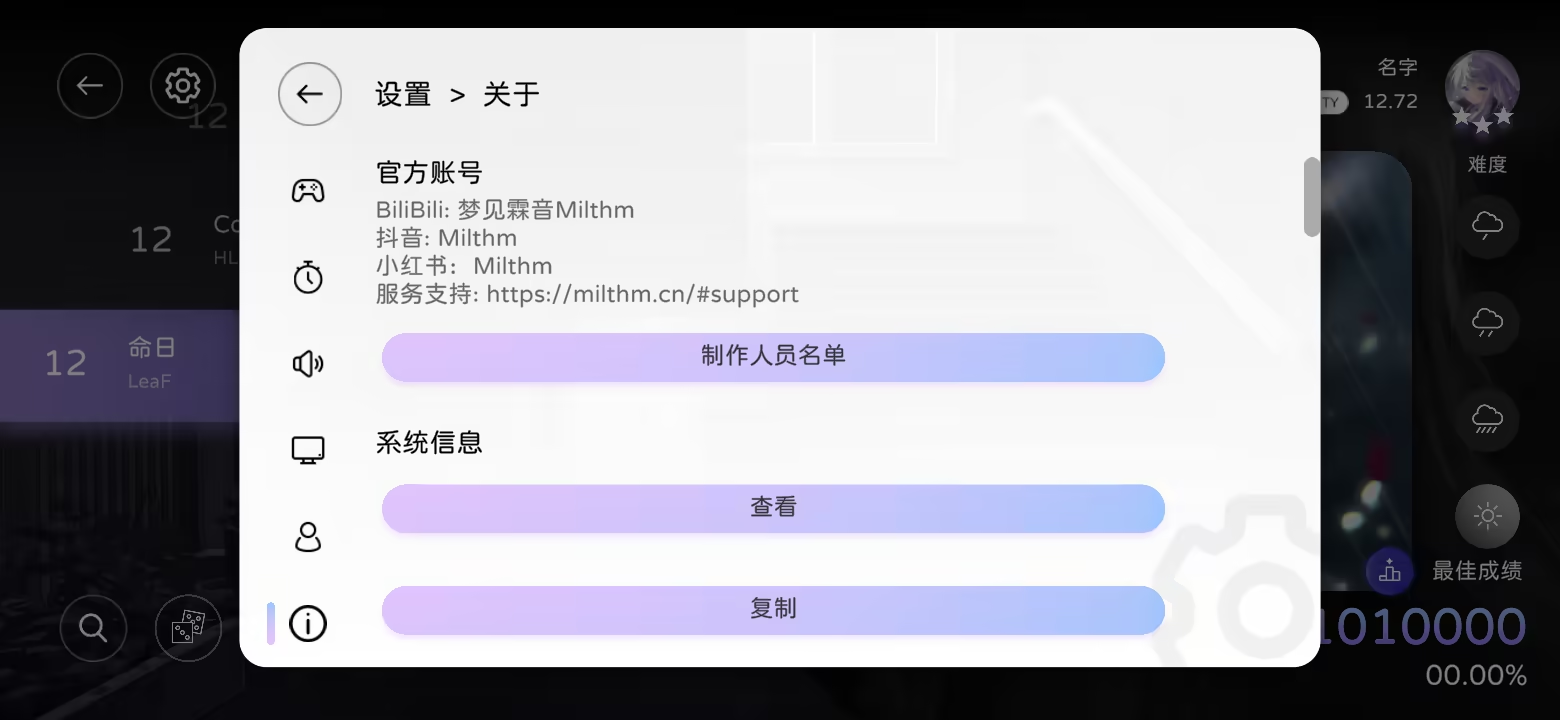
Here, you can view Milthm version information, developer credits, device system info, and third-party/open-source licenses.
Start Game
Click “Start Game” to enter the song selection screen. 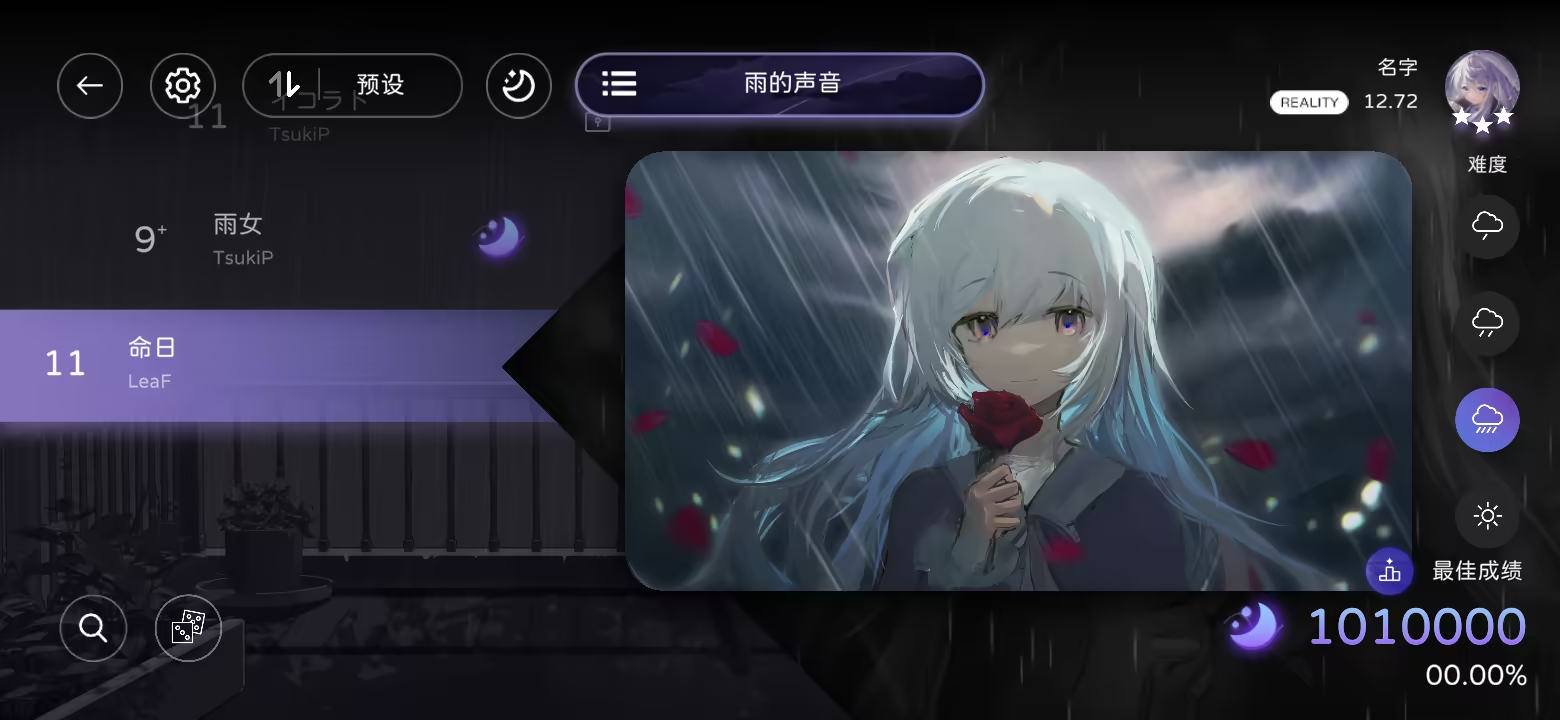
Top bar (left to right): Back to Home, Settings, Sort, Dream Ripple, Chapters.
Bottom left: Search, Random. Right side: Difficulty Select.
Played charts display Local Ranking above the score. Click the avatar in the top-right corner to enter Story.
Click the song title, artwork, or the selected difficulty again to start playing. Locked difficulties display “?” or a lock icon — tapping reveals unlock conditions.
Unlock conditions usually require playing specific charts or watching story scenes.
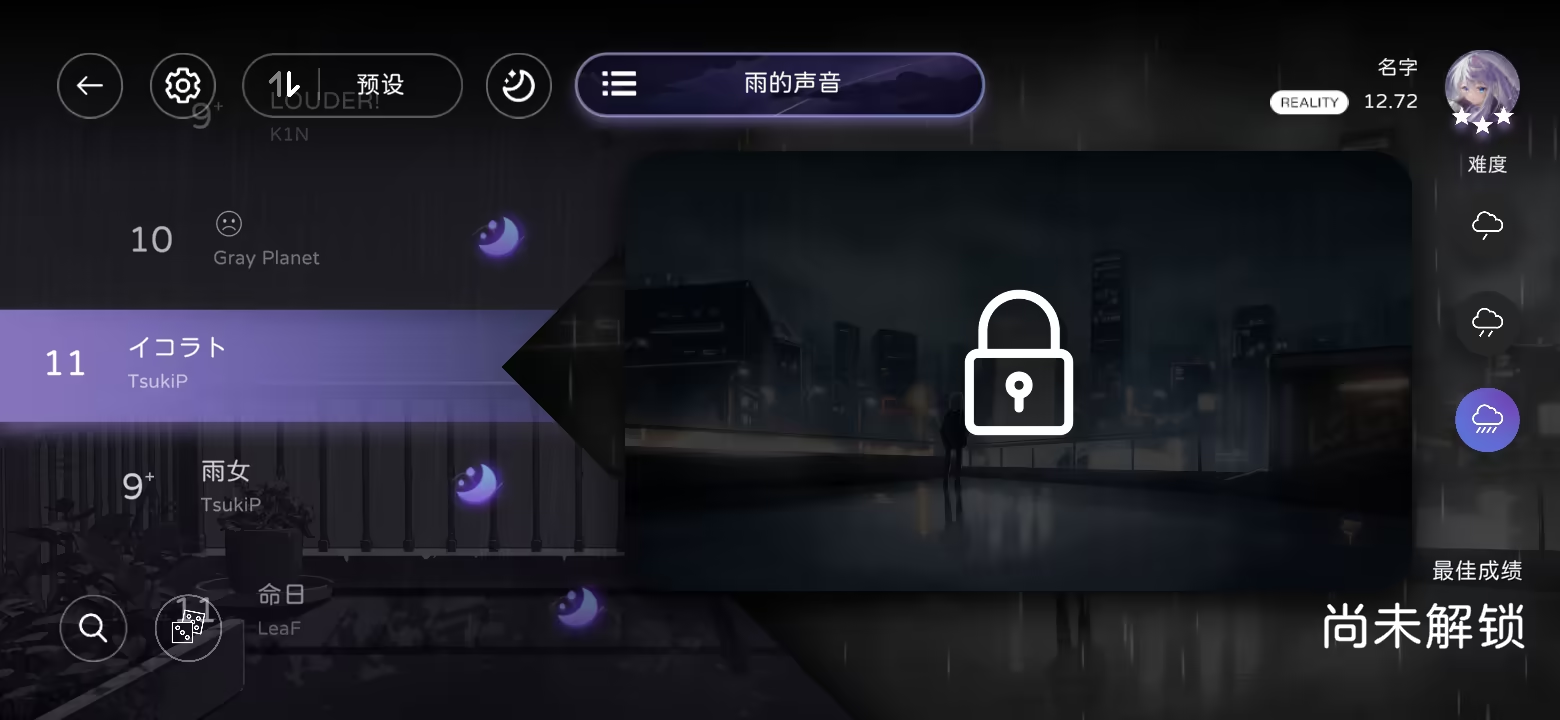
By default, double-tapping the artwork quickly skips empty intros.
Chapters
In the chapter selection interface, swipe left or right to browse, or click the top-right corner to view all songs. 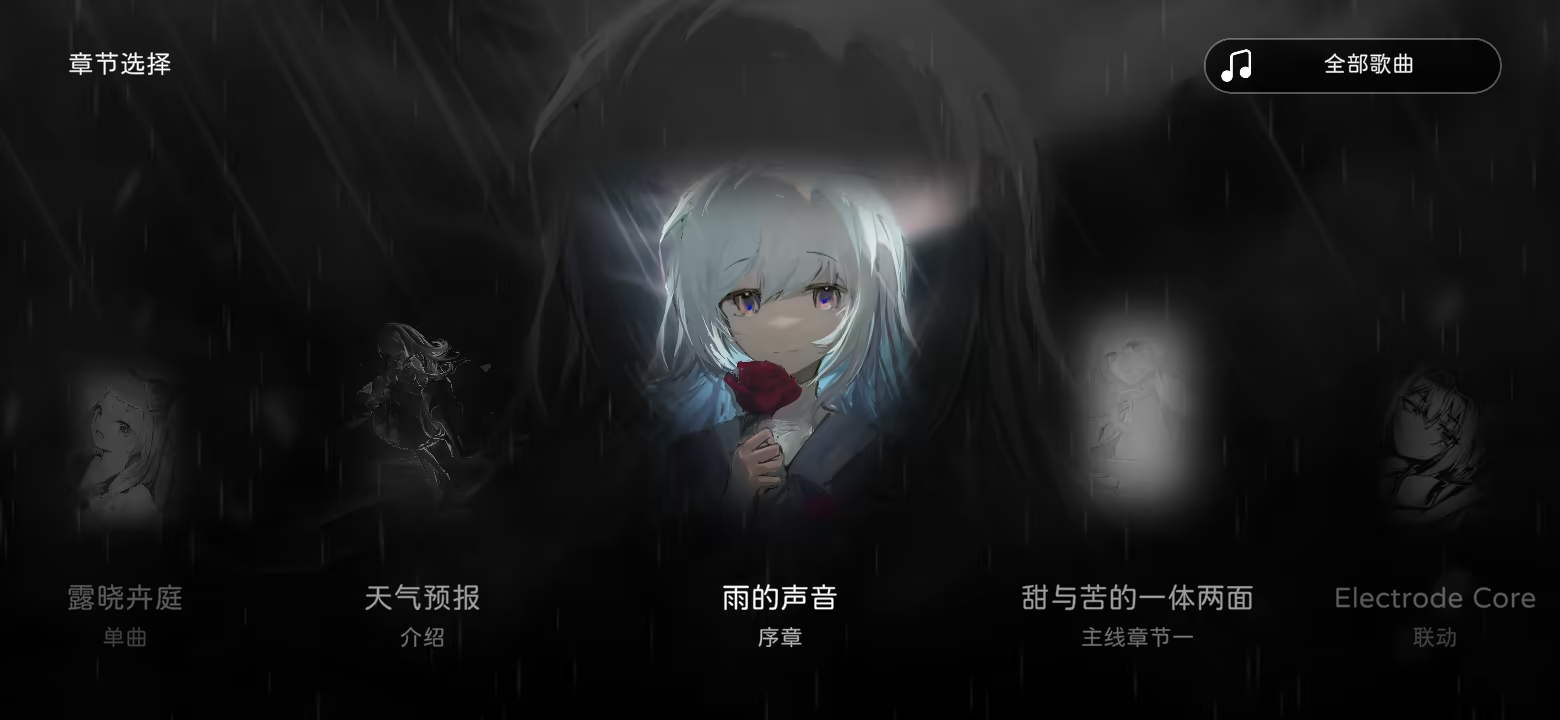
Sort
Click the arrow next to the sort icon to toggle ascending/descending order.
Sort options: Preset, Title, Composer, Difficulty, Score, Accuracy, Rating. 
Dream Ripple
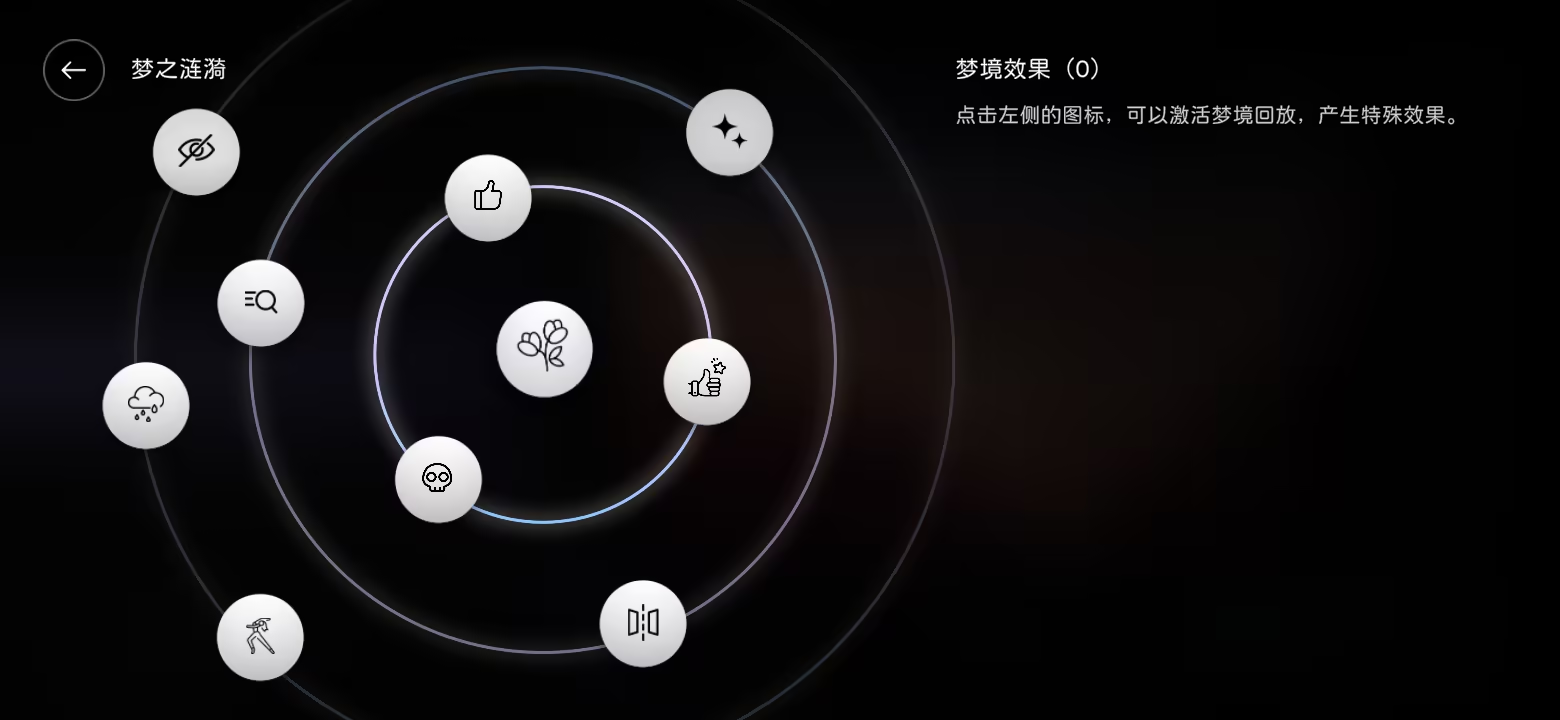
Dream Ripple adds special gameplay modifiers. Tap it to view detailed descriptions.
Available options:
Splendid Dream Hard mode; requires Milkloud login. See: Dream Ripple “Splendid Dream” Introduction
Nightmare Adds special visual effects to certain charts (used for “Phenomenon” replays or unlocking special tracks).
Brilliant Performance Restarts the song on combo break (incompatible with Perfect Performance).
Perfect Performance Restarts when accuracy drops below 100%.
Striving for Perfection Differentiates between big P and small p judgments.
Mirror Flips the playfield horizontally.
AutoPlay Automatically clears the chart (no score).
Invisible Notes become transparent before reaching the judgment line.
Heavy Rain Turns all notes into raindrops (no score).
Chaos Notes scatter randomly (no score).
Difficulty Select
Currently, there are four standard difficulties: Drizzle, Sprinkle, Cloudburst, Clear.
Not all songs include all difficulties. Charts outside these levels (e.g., “Special”) do not count toward the Reality system.
If a song lacks a Clear difficulty, tapping its icon jumps to the last played Clear chart within the same chapter.

Search
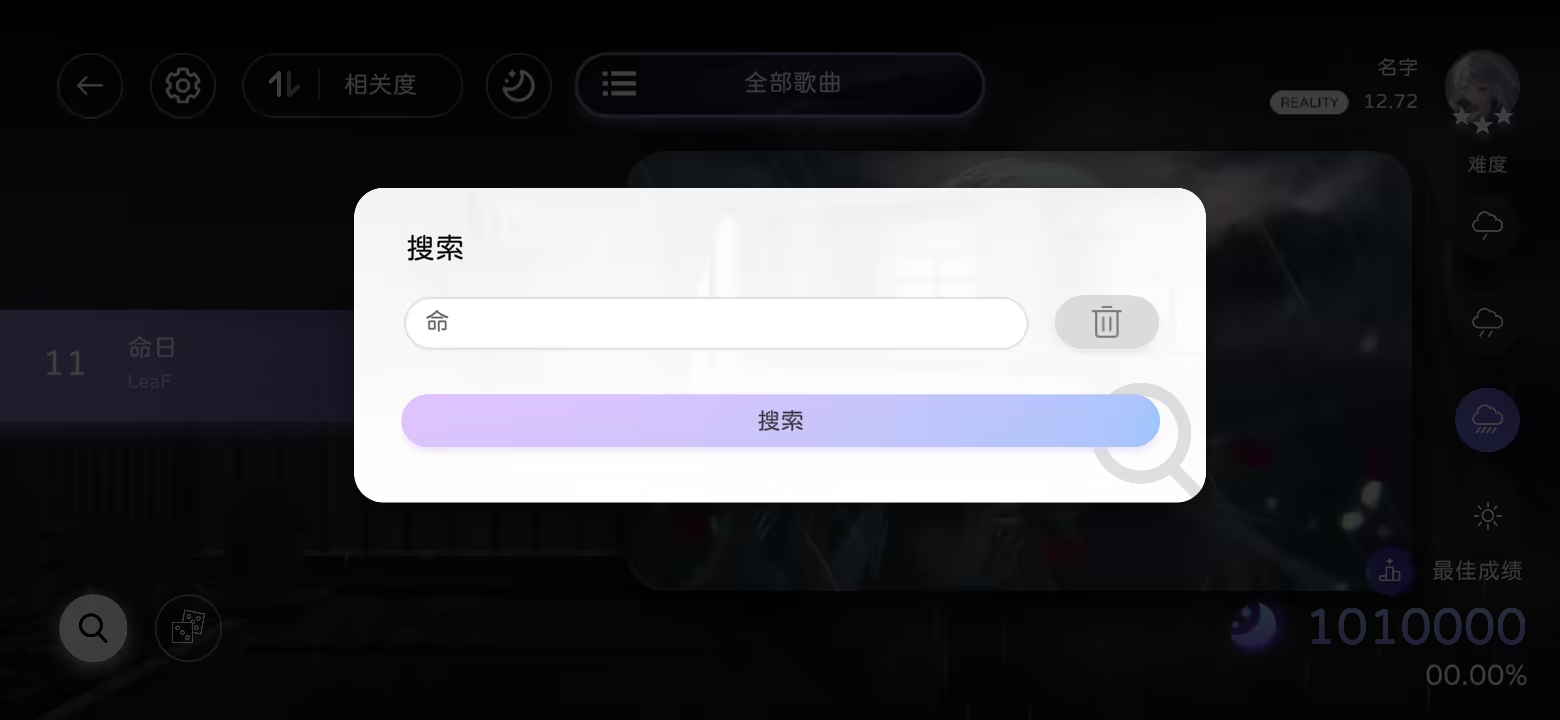
Click the magnifying glass icon (bottom left) to search songs in the current chapter. Search supports partial matches for title, composer, charter, or features.
Random
Click the dice icon (beside Search) to select a random song.
More likely to choose songs easier for score pushing.

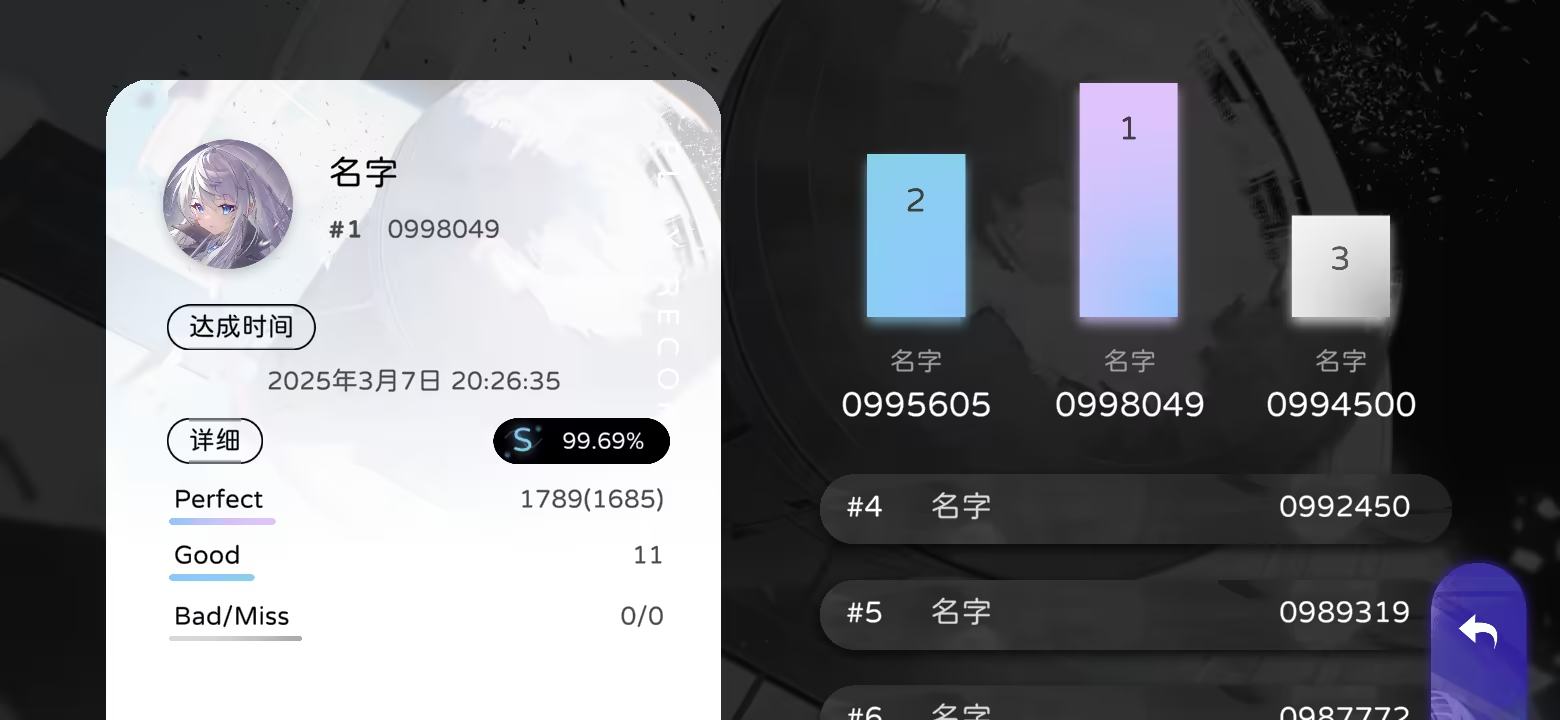
Local Ranking
Click the icon above the score to open the local leaderboard. It records locally stored song scores and detailed stats.
Story
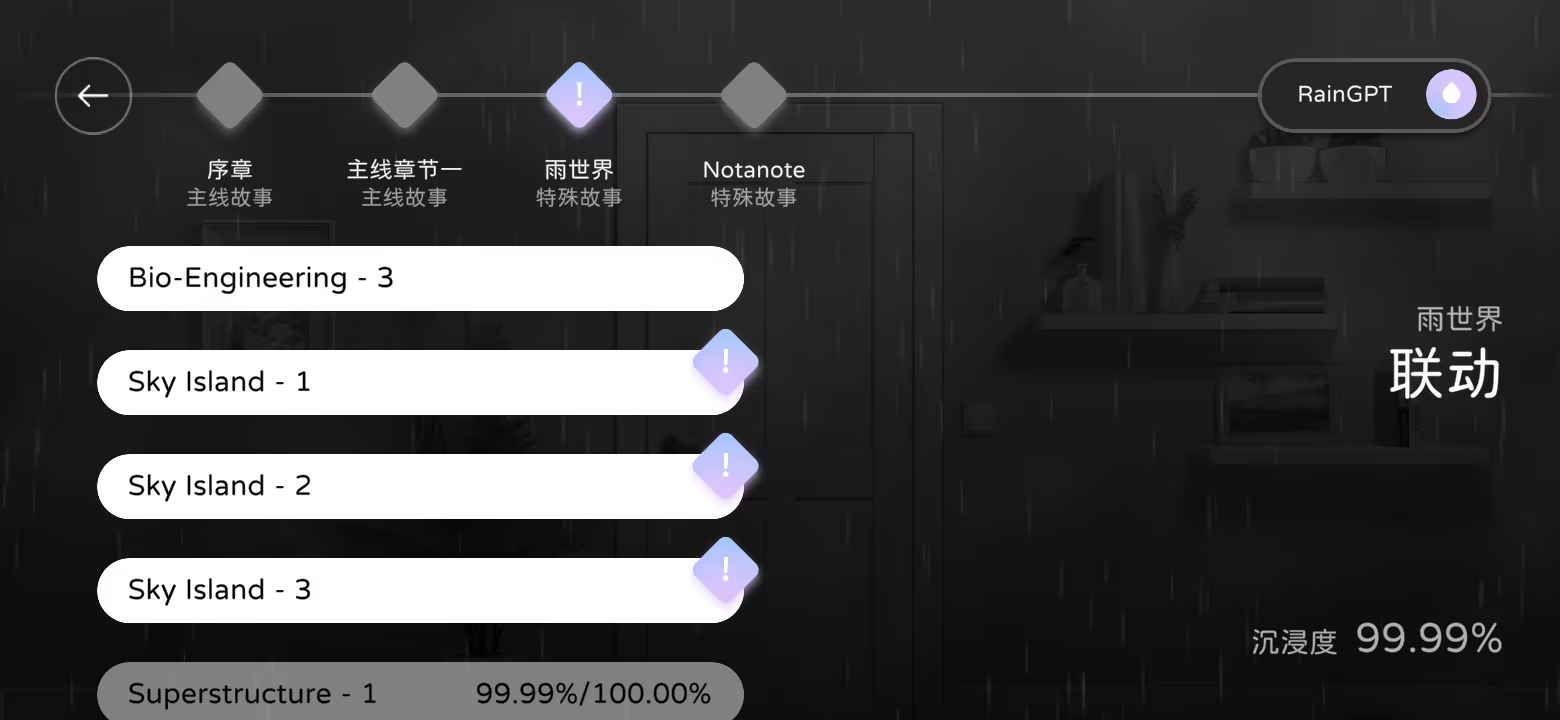
Access the Story screen from the home page or by clicking the avatar on the song selection screen.
Here you can read the game’s storyline.
Locked stories appear grayed out — tap to view unlock conditions. Immersion is required to unlock stories, gained by playing corresponding chapters.
Scoring & Judgments
After completing a chart, your performance is graded based on accuracy and completion. This section covers Clear Ratings and Completion States. For details on judgment mechanics, see Judgment System Introduction.
Clear Ratings
There are eight rating levels:
When achieving Full Combo, the rating turns blue. When achieving All Perfect, it turns AP purple.
| Rating | Condition |
|---|---|
 | Achieve the theoretical maximum of 1,010,000 points (RHYTHM of RAIN – all notes hit perfectly). |
 | “M” (Milthm) – awarded upon reaching 1,000,000 points. |
 | Awarded upon reaching 950,000 points. |
 | Awarded upon reaching 850,000 points. |
 | Awarded upon reaching 750,000 points. |
 | Awarded upon reaching 650,000 points. |
 | Awarded upon reaching 600,000 points. |
 | Below 600,000 points or failed to clear (no FC/AP icon). |
Completion States
Displayed after finishing a chart:
| Completion | Condition |
|---|---|
 | ACC < 80%. |
 | ACC ≥ 80%, with at least one Bad/Miss. |
 | All notes hit within ±140ms, with at least one Good. |
 | All notes hit within ±70ms, but not theoretical max. |
 | All notes hit within ±35ms, theoretical max achieved. |
 | Cleared with AutoPlay. |
 | Score exceeds 1,010,000 (with Heavy Rain). |